
🎬 Mastering Vrew: An Easy Guide from Automatically Generating Subtitles to Editing Video
The Complete Guide to Using Vrew
1. What is a brew?
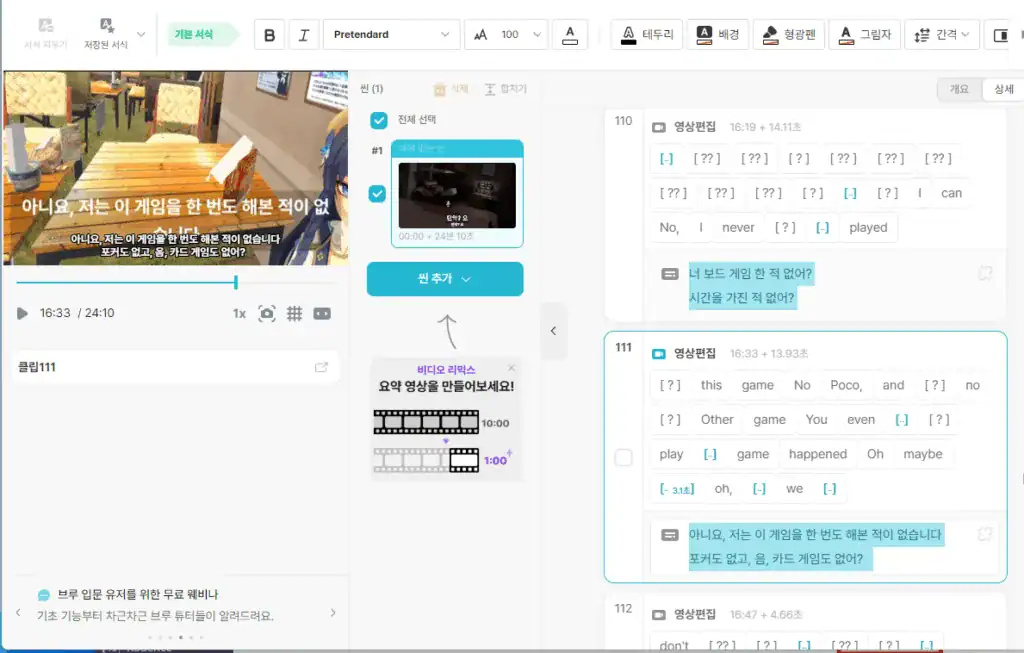
Vrew is a AI-powered subtitle generation & video editing softwareis the value.
For YouTubers, video editors, interviewers, and anyone else who creates video footage Tools to make subtitling quick and easywhich is famous for its.
→ More people are now enriching their content with emojis and captions.
Because it's a fairly reliable and informative platform,
If you're a creator, you'll want to give it a try.
- ✅ AI speech recognitionGenerate automatic subtitles with
- ✅ Edit subtitles, edit cuts, highlight, and even extract thumbnails
- ✅ Both PC & mobile apps available
2. How to install Brew (on PC)
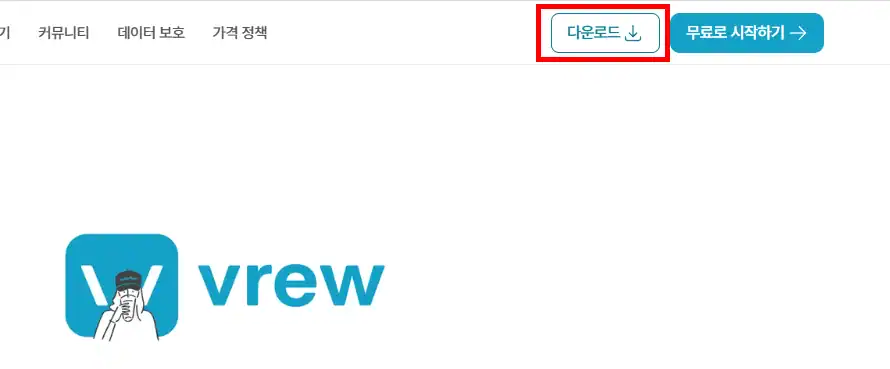
- Access the official site → https://vrew.voyagerx.com/
- Select your operating system (Windows or macOS)
- Download and run the installation file
- Sign up or link your social media account and you're logged in!
📌 Vrew works just as well on the free plan.
The subtitle auto-generation feature alone is worth the price of admission.
By the way, I recommend downloading the program and using it.
This is because simple web pages don't support features like subtitle extraction.
3. Using Brew Basics - Automatically Generate Subtitles for Video
📂 ① Load a video
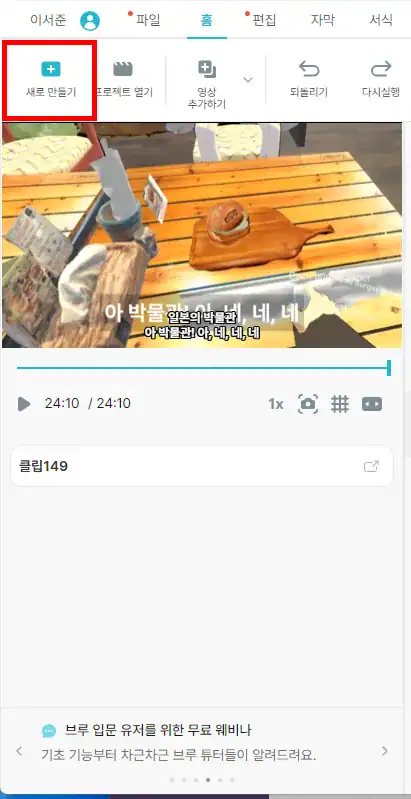
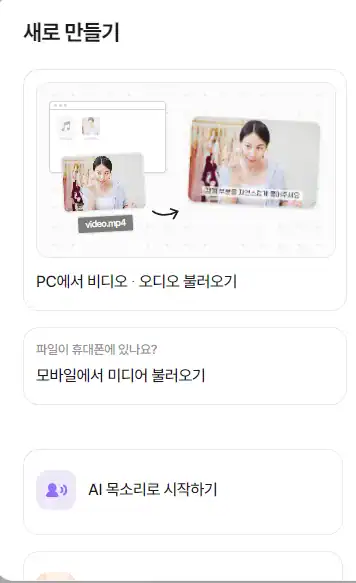
- After running Vrew, the ‘Create New’ Click
- Import your favorite video files (MP4, MOV, and most others are supported)
🗣️ ② Generate automatic subtitles
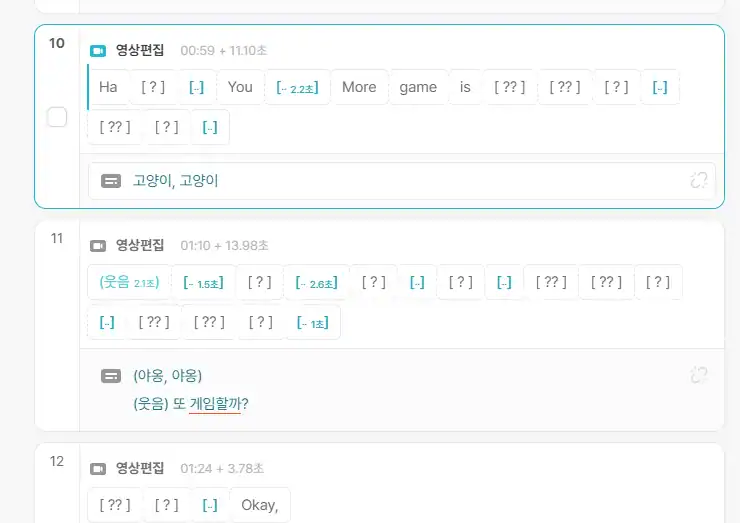
It will then recognize your voice and generate subtitles for you.
- If Vrew is AI speech recognitionto automatically create subtitles for you, which is very convenient.
- Depending on the length of the video Complete subtitles in seconds to minutes
✍️ ③ Edit subtitles
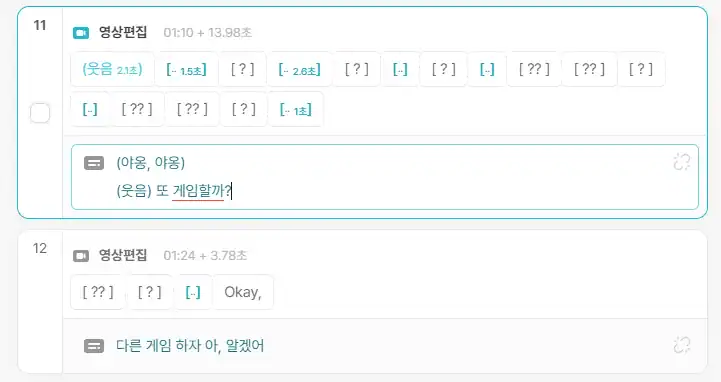
- Fix misrecognized words (double-click to edit directly)
- Colloquial tone of voice → Literal sounds better.
- Subtitle length can also be adjusted based on speaking speed
🎨 ④ Set the subtitle style

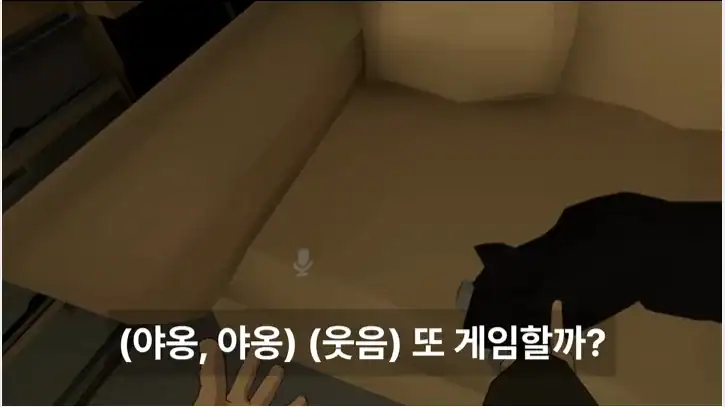
I like the idea of adding a background color and transparency.
- Set fonts, sizes, colors, borders, and drop shadows
- Subtitle positions can also be moved freely
You can set the subtitle style,
I love that you can make it as clean or as pretty as you want.
4. There's even highlight editing!
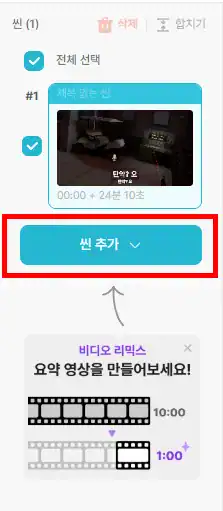
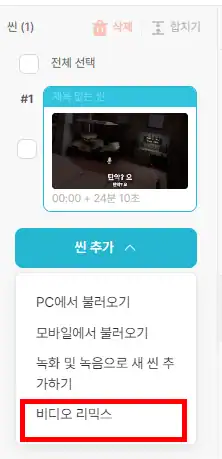
Vrew isn't just a subtitling tool,
‘Edit Highlights’ featureto automatically create the important parts separately.
- Select 🙋♀️타임라인에서 → Hit ‘Add scene’ at the bottom
- 🎬[Video Remix] -> [Create Highlight Video].
After some time,
You'll get AI-picked highlights automatically.
I really like this highlighting feature,
It's a handy tool that I've used to create short videos.
▼ Short videos, made easy with AI
5. Save & Export Footage
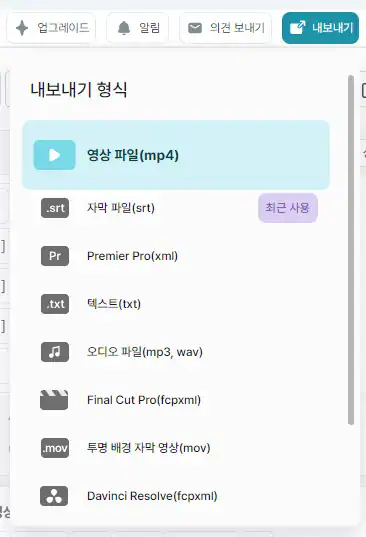
🔽 Video export options
- Save as video (with subtitles included)
- Extract subtitles only to SRT, TXT, etc. (app only)
- Once you've downloaded the SRT file, you can embed subtitles for YouTube right away.
You can also paste it directly into your video,
We're also adding Korean subtitles to YouTube so that our international fans can use the translation.
💡 Set up recommendations
- Video quality: 1080p Full HD
It's now up to 4K quality. - Subtitle format: SRT for YouTube + embedded in the video itself and saved as MP4
▼ See the amazing YouTube subtitle algorithm
6. 4 helpful tips for brewing
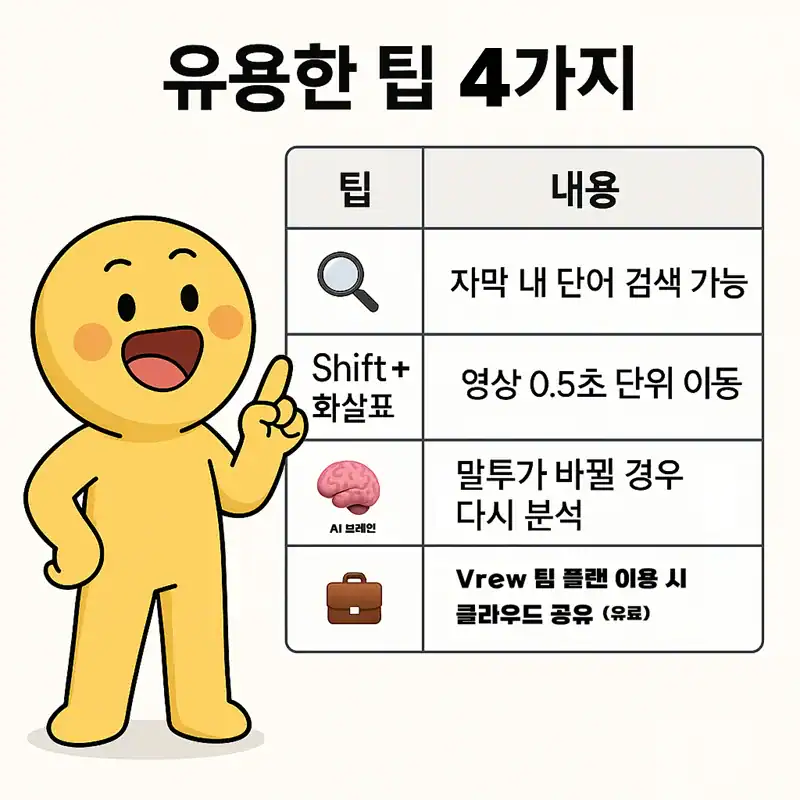
| 팁 | Contents |
|---|---|
| 🔍 Ctrl + F | Search for words in subtitles |
| ⏱️ Shift + arrow | Move video block by block |
| 🧠 AI analytics | Simple editing with AI analytics |
| 💼 Team collaboration | Cloud sharing is available with the Brew Team Plan |
7. People who make good use of Vrew
- YouTubers: Captioning vlogs and informational videos
- Instructor/Coach: Create subtitles + highlight cuts for lecture videos
- Company team leaders: Summarize meeting videos, edit interview videos
- Solo creators: Easily do all the editing by yourself!
8. Frequently asked questions (FAQ)
Q1. Is it free?
A. Basic features are free, subject to limits, Create and edit subtitles without watermarking your videos.
(Paid plans include cloud storage, team collaboration, advanced templates, and more)
Q2. What about accuracy?
A. Very high accuracy for recognizing English or Korean (90% and later)
However, if the pronunciation is slurred or the background music is loud, the accuracy is ↓.
Q3. Can I use it on mobile?
A. Although a mobile app is also available, The PC version is so much more convenient!
(Mobile for simple preview & subtitle check)
9. Wrap up using Vrew, a must-have editing tool for creators!
(Source - Vrew YouTube channel)
Brew is really a The best tools for video editing beginnersis the value.
Once you're familiar with the program, you can use the
It's great for beginners and pros alike.
The automatic subtitle generation alone is a huge time saver for creators,
You can even edit highlights
“Once you try it, you'll never subtitle by hand again” turned out to be so true 😎.
That's a lot of value.
You can also use Vrew, a free AI video editing program that lets you create and edit
Add subtitles conveniently and simply,
Let's extract the highlights!
Until you're a more mature creator,
We're with you.
Thanks again for stopping by today.
🔖 Summary
- Vrew = AI editing tool that automatically generates video subtitles + highlights.
- Powerful enough for freeand the quality of the subtitle analysis is good.
- For editing YouTube, lecture, vlog, and meeting videosfor the best.






 한국어
한국어  English
YouTube, Instagram-only videos,
Make it easy with Brew!
I've been finding it really useful too 🙂 .